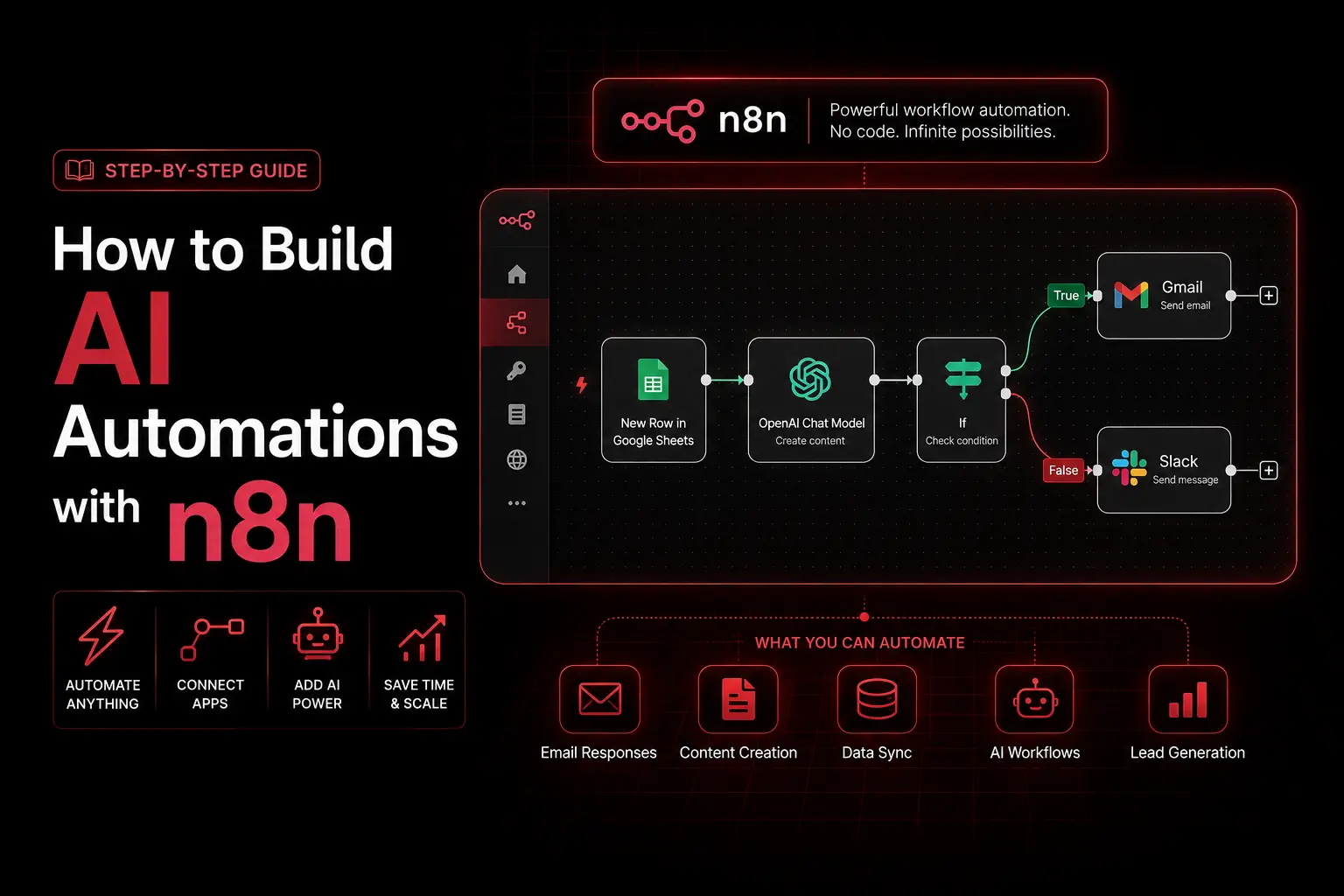
Building AI automations with n8n is how mid-market teams run complex, multi-step workflows that would cost a fortune on per-task platforms. n8n is a fair-code workflow automation tool with a visual node editor, and its defining advantage is how it bills: one full workflow run counts as a single execution no matter how many steps it contains. At NuroSparX, we build these systems for SMBs that have outgrown simple triggers and need real conditional logic, data enrichment, and error handling that does not fail silently. This guide skips toy examples and walks through three production workflows, the way n8n actually handles errors, and an honest 2026 cost comparison against Zapier and Make.
If you have used Zapier and hit the wall where a five-step workflow quietly multiplies your bill, n8n is the answer. The same automations that get expensive elsewhere stay flat here, because complexity does not inflate the cost.
Want results like this for your business?
NuroSparX builds AI-powered growth engines for SMBs doing $5M-$100M. Let’s talk.
Get a Free Growth AuditWhat Is n8n?
n8n is a workflow automation platform that connects apps and APIs through a visual, node-based editor, with the option to self-host the free Community Edition or use n8n Cloud. Unlike per-task tools, it charges per workflow execution, which makes complex automations dramatically cheaper at scale. It supports custom JavaScript and Python, conditional branching, and native error workflows, so it handles business logic that simpler tools cannot.
How n8n Differs: The Execution Model
n8n is built on three core concepts. Nodes are individual actions (fetch from an API, transform data, send an email). Connections show how data flows between them. A workflow is the full automation from trigger to finish. A simple one might be: email arrives, check if spam, route or delete. An advanced one chains enrichment, scoring, branching, notifications, CRM updates, waits, and retries.
By default, n8n executes nodes sequentially: each waits for the previous node, then passes its data forward. That is reliable but can be slow for large datasets, which is why advanced users reach for batching and loops. The architectural point that matters most is billing. n8n counts one execution per full workflow run regardless of node count, and as of late 2025 it counts only successful executions, so failed and test runs do not burn your quota. A two-step workflow and a fifty-step workflow each cost exactly one execution. Hold onto that fact, because it reshapes the cost math later.
How to Build a Lead Qualification Workflow in n8n: Step by Step
This workflow scores inbound leads on fit and routes the good ones to sales automatically.
- Add the trigger. Use a form trigger such as Typeform or a webhook to fire when a new submission arrives. Test it by submitting the form once.
- Create the lead in your CRM. Add a HubSpot node (or an HTTP Request node) to POST the contact to
https://api.hubapi.com/crm/v3/objects/contacts, mapping name, email, and company from the trigger data. n8n references upstream data with the{{ }}expression syntax. - Enrich with company data. Add an HTTP Request node to a data provider. Clearbit is now part of HubSpot’s Breeze Intelligence, so current options include Breeze, Apollo, or Hunter to pull industry, headcount, and funding from the lead’s domain.
- Score the lead with a Code node. Add a Code node (the current node that replaced the legacy Function node) and write the logic in JavaScript:
   const lead = $input.all()[0].json;
   const company = $input.all()[1].json;
   let score = 0;
   if (company.employees > 100) score += 10;
   if (company.employees > 500) score += 10;
   const targetIndustries = ['SaaS', 'Technology', 'Finance'];
   if (targetIndustries.includes(company.industry)) score += 15;
   if (company.estimatedRevenue > 5000000) score += 25;
   return [{ json: { lead, company, score } }];
Adjust the weights to match your ideal customer profile. 5. Branch on quality. Add an IF node with the condition score > 50. The true path goes to your high-value track; the false path goes to nurture. 6. Alert sales on hot leads. On the true path, add a Slack node posting to your sales channel: “New SQL: {{ name }} from {{ company.name }}, score {{ score }}.” 7. Write the score back to the CRM. Add a HubSpot node using PATCH to update the contact with the lead score and a qualified status.
Within seconds of a form submission you have an enriched, scored lead in your CRM and your sales team is already notified about the best ones.
Workflow 2: Email Nurture with Engagement Alerts
This one sends a timed sequence and tells sales when a lead engages. Trigger on a new CRM contact at a chosen lifecycle stage. Then alternate Email nodes with Wait nodes (send email one, wait three days, send email two, and so on, tightening the gaps toward the end). After the final email, use a Code node to inspect the email events and flag whether the contact opened or clicked anything. Add an IF node: if engaged, post a Slack alert to sales with the contact name and the open or click count; if not, route them to a longer nurture track or mark them cold. The result is a hands-off sequence that surfaces interest the moment it appears.
Workflow 3: Multi-Channel Data Sync with Real Error Handling
This workflow pushes every new deal into a tracking sheet and notifies the right teams, and it is where error handling earns its keep. Trigger on a new HubSpot deal at a chosen stage. Use a Code node to format the deal into the fields you want (company, amount, owner, expected close, timestamp). Append a row to Google Sheets, then post a formatted alert to your sales Slack channel. The advanced part is making sure that if Google Sheets or the Slack API is down, you find out instead of the deal vanishing silently. The next section covers exactly how n8n does that, because it is not what most guides claim.
Error Handling in n8n (How It Actually Works)
There is no “Try/Catch node” in n8n, and functions like retryPreviousStep() or skipAndContinue() are not part of the platform. Anyone who tells you to wrap steps in a Try node is describing software that does not exist. Here is the real model, which is cleaner anyway.
- Per-node On Error setting. Every node has a Settings tab with an On Error option: Stop Workflow (the default), Continue, or Continue (using error output). Setting a node to continue using error output lets you branch to a recovery path when that specific step fails.
- Retry On Fail. In the same Settings tab, enable Retry On Fail, then set Max Tries (up to five) and Wait Between Tries. This handles transient problems like API rate limits without any code.
- Error Workflow plus Error Trigger. Build a separate workflow that starts with an Error Trigger node, then in your main workflow’s settings assign it as the Error Workflow. Whenever the main workflow throws an unhandled error, the error workflow fires with the full error payload, so you can post to a Slack DevOps channel, log to a database, and email an admin from one place.
For decision-heavy logic, use IF nodes for simple branches and a Switch node when you have several cases (for example routing a lead score into nurture, sales, or a VIP track with a default fallback). Combined, these give you retries, graceful skips, branching recovery, and centralized alerting without inventing anything.
Custom Code, Performance, and Scaling
The Code node runs JavaScript natively and Python through Pyodide, so you can transform data, hash values, derive fields, or score records inline. Python in the Code node is great for data-shaping, though external package support is limited compared with a full Python environment, so check compatibility before relying on a specific library.
As automations grow, three levers keep them fast and affordable. Batching processes records in groups rather than one at a time, which cuts API calls sharply on large datasets. Scheduling runs workflows on a sensible cadence (lead scoring hourly, syncs nightly) instead of firing constantly, which trims both load and cost. And because n8n has no built-in cache, you can store repeated lookups in workflow static data or an external store so you call an enrichment API once per domain instead of once per lead. n8n does run branches, and a Merge node lets you recombine them, though the engine is largely sequential per execution, so treat parallel branches as a way to organize logic rather than a guarantee of true concurrency.
n8n vs Zapier vs Make: 2026 Cost Comparison
This is where the execution model pays off. The three platforms bill on completely different units, and that unit decides your bill far more than the headline plan name.
| Factor | n8n | Zapier | Make |
| Billing unit | Per workflow execution | Per task (one action step) | Per credit (one module run) |
| Step count effect | None, any node count is 1 execution | Every step adds a task | Every module adds a credit |
| Free option | Self-hosted Community, unlimited | 100 tasks/month (eval only) | 1,000 credits/month |
| Entry paid plan | Cloud Starter about $20/mo, 2,500 executions | Professional about $20/mo annual, 750 tasks | Core about $9/mo, 10,000 credits |
| Mid tier | Pro about $50/mo, 10,000 executions | Team from about $69/mo, 2,000 tasks | Pro about $16/mo, Teams about $29/mo |
| Self-host | Yes, free software (~$3 to $7/mo server) | No | No |
| Best for | Complex, high-volume, multi-step | Simple workflows, widest app library | Visual mid-volume automations |
The takeaway: a five-step workflow that runs hundreds of times a month is one execution per run on n8n but five tasks per run on Zapier and five credits per run on Make. That gap is why teams running complex automations often report large savings after moving to n8n, especially when self-hosting. Note that n8n Cloud removed its permanent free tier in late 2025 and now offers a trial only, so the free path is the self-hosted Community Edition. Always confirm current numbers, since all three vendors change pricing often. For the content side of automation, see our guide on AI content workflows with Make.com and ChatGPT.
Mistakes That Break n8n Automations
Three errors cause most of the failures we are called in to fix.
- No error workflow. Without an Error Trigger workflow and per-node retry settings, a single failed API call can stop an automation and you will not know until a deal goes missing. Set up centralized error alerting before you go live.
- Ignoring the execution model when costing. On n8n the cost driver is how often workflows run, not how many steps they have. Polling a service every five minutes burns roughly 8,640 executions a month from one workflow, which blows past the Starter cap. Schedule sensibly and self-host high-volume jobs.
- Building without test runs. Push a workflow against a single test record before enabling it on live data. n8n’s execution history shows each node’s input and output, which is where you trace exactly where data gets lost.
Frequently Asked Questions
Is n8n harder than Zapier?
Slightly, for simple automations, because Zapier’s interface is more beginner-friendly. But n8n pulls ahead the moment you need conditional logic, custom code, or error handling. Most people find n8n comfortable within a week or two once they understand nodes and the expression syntax.
How does n8n pricing compare to Zapier and Make?
n8n bills per full workflow execution, while Zapier bills per task and Make bills per credit, meaning each step adds cost on the other two but not on n8n. The self-hosted Community Edition is free software with unlimited executions, and n8n Cloud starts around $20 per month for 2,500 executions. For complex, high-volume workflows this is often far cheaper than the alternatives.
Do I need to know coding to use n8n?
No, but it helps. Most workflows can be built with no-code nodes, and the Code node is there for the cases that need custom JavaScript or Python. You can go a long way using HTTP Request, IF, Switch, and app nodes without writing any code.
How does error handling work in n8n?
Each node has On Error settings (stop, continue, or continue using error output) and a Retry On Fail option with configurable retries and wait time. For unhandled errors, you build a separate workflow that starts with an Error Trigger node and assign it as your main workflow’s Error Workflow, which centralizes alerts to Slack, email, or a log.
Can I run n8n on my own server?
Yes. The self-hosted Community Edition is free software with unlimited executions; you only pay for the server, typically $3 to $7 per month on a small VPS. Avoid underpowered hardware like a Raspberry Pi for production, and use a proper VPS or n8n Cloud for reliability.
How do I test a workflow before running it on real data?
Run it against a single test record first and review the execution history, which shows the exact input and output of every node. This catches mapping errors and bad transformations before they touch live data, and failed test runs do not count against your execution quota.
Ready to Build Automations That Actually Scale?
Most teams do not have an automation problem, they have a tool problem: simple platforms that get expensive the moment the logic gets real. n8n removes that ceiling, and the workflows in this guide are the same patterns we deploy for clients every week. If you want to know which of your manual processes are quietly costing the most hours, book a free growth audit and we will map where automation pays off fastest. Questions first? Reach the team through our contact page.