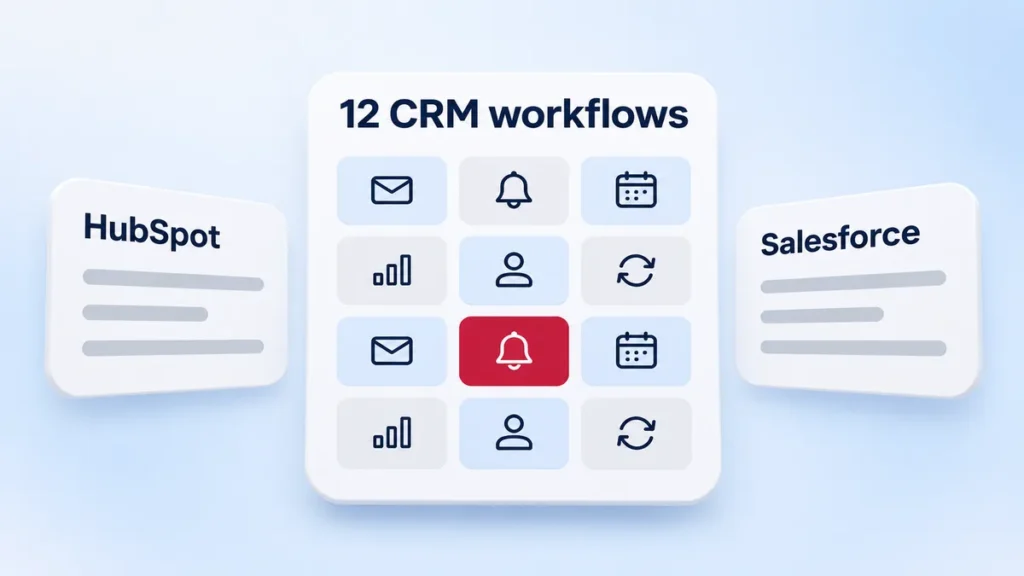
CRM automation means your CRM does the routine follow-up work on its own: it assigns new leads, creates tasks, moves deals and flags gaps the moment something changes. The 12 workflows below cover leads, deals, customers and data. Each one works in HubSpot workflows and in Salesforce Flow, once your team agrees the rules.
Start with the first two. They get a new lead to a rep fast. Harvard Business Review researchers studied 1.25 million sales leads at 42 US companies. Firms that tried to reach a lead within an hour were nearly 7 times as likely to qualify it as firms that tried even an hour later (HBR, The Short Life of Online Sales Leads). The same team audited 2,241 US companies and found that only 37% answered a web lead within an hour.
The 12 workflows we’d build first
| # | Workflow | Trigger | HubSpot | Salesforce |
|---|---|---|---|---|
| 1 | Route new leads to an owner | Form fill or new contact | Rotate record to owner action | Record-triggered flow on Lead |
| 2 | Alert the owner and escalate | Owner set, no activity in 60 minutes | Task, internal email, delay, branch | Scheduled path on the same flow |
| 3 | Score leads and set the stage | Fit and activity change | Lead score property, then set lifecycle stage | Formula field, then flow updates Status |
| 4 | Wake up quiet leads | No touch in 14 days | Delay, branch, enroll in sequence | Schedule-triggered flow |
| 5 | Create a deal from a booked meeting | Meeting booked | Create record action | Flow on Event creates Opportunity |
| 6 | Set tasks at each deal stage | Stage changes | Deal pipeline automation | Flow on Opportunity StageName |
| 7 | Flag stalled deals | No stage change in 21 days | Deal-based workflow, manager alert | Scheduled path, alert to manager |
| 8 | Hand won deals to delivery | Deal closed won | Create ticket or project, notify team | Flow creates a Case or custom Project record |
| 9 | Recycle lost deals | Closed lost, 90 days later | Delay, re-enroll in nurture | Scheduled path, update Lead Status |
| 10 | Start renewals early | 90 days before renewal date | Date-based trigger, renewal deal | Scheduled path creates renewal Opportunity |
| 11 | Clean up records | Record created or edited | Format data action (Data Hub Pro), missing-field task | Before-save flow updates fields |
| 12 | Keep the first source | First form fill | Copy UTM properties to the deal | Flow copies source fields to Opportunity |
The day counts (14, 21, 90) are starting settings. Change them to fit your sales cycle.
Get new leads to a rep in minutes

1. Route every new lead to an owner. A lead with no owner waits for someone to notice it. In HubSpot, the “Rotate record to owner” action assigns records across a team or a list of users. HubSpot says this action needs a Sales Hub or Service Hub Professional or Enterprise plan (HubSpot, Assign and rotate record owners). In Salesforce, a record-triggered flow on the Lead object can set the owner by state, company size or product line. Use a territory rule if your reps own regions, and round robin if they don’t.
2. Alert the owner, then escalate. Assignment alone doesn’t make anyone call. The same workflow should create a “Call this lead” task, send the owner an alert in email or Slack, wait 60 minutes, then check for a logged call or email. If nothing happened, alert the sales manager. This one rule protects the hour the HBR study points to.
Test both workflows with a fake lead before you switch them on. Then mark that test lead so it never counts in your reports. A tag such as utm_medium=test does the job.
Score leads and keep them warm
3. Score leads and set the lifecycle stage. Give points for fit (job title, company size, country) and for activity (pricing page visit, second form fill). When a lead crosses your line, set the lifecycle stage to marketing qualified and notify the owner. In Salesforce, a formula field or a flow calculates the score, and the flow updates the Lead Status. Keep the scoring rules to one page. If sales can’t explain why a lead scored 60, they won’t trust it.
Copy this starting model. The points are suggested settings, so tune them after a month of real leads.
| Signal | Type | Points |
|---|---|---|
| Job title includes VP, director, head or founder | Fit | 20 |
| Company size of 50 to 1,000 staff | Fit | 15 |
| Country you sell to | Fit | 10 |
| Visited the pricing page | Activity | 15 |
| Second form fill in 30 days | Activity | 20 |
| Personal email domain (Gmail, Yahoo) | Fit | minus 15 |
| Marketing qualified threshold | Rule | 50 |
Run the model against last quarter’s closed deals before you switch it on. If most of the won deals would have scored under 50, your threshold sits too high or your points reward the wrong signals.
4. Wake up quiet leads. Plenty of leads go silent after the first call. Build a check that finds open leads with no logged activity for 14 days. Enroll them in a short email sequence from their owner, or create a task to call. In Salesforce, a schedule-triggered flow runs this check every night.
Keep deals moving

5. Create a deal when a lead books a meeting. Reps forget to open deals, and then the pipeline report runs light. Trigger on a booked meeting, create the deal at your first stage, associate the contact and company, and copy the owner. In Salesforce, a flow on the Event object can create the Opportunity.
6. Set tasks at each deal stage. Each stage needs a next step. When a deal moves to “Proposal sent”, create a follow-up task due in 3 days. When it moves to “Contract out”, alert finance. HubSpot lets you add these tasks straight onto the pipeline stages, and that works on Sales Hub Starter too (HubSpot, Pipeline automations). In Salesforce, a record-triggered flow on Opportunity checks the stage value.
7. Flag stalled deals. Set a rule: no stage change in 21 days sends the owner and the manager an alert with the deal name, value and last activity date. Review the list in the weekly pipeline meeting. Move deals that stall twice to closed lost, so the forecast stays honest.
8. Hand won deals to delivery. When a deal closes won, the customer should hear from you that day. The workflow creates an onboarding ticket or project, assigns it to the delivery lead, sends the welcome email and books the kickoff task. No rep has to remember to forward an email.
Win back lost deals and renew customers

9. Recycle lost deals. A “not now” today can turn into a yes next quarter. Ask reps to pick a closed lost reason from a short list. For “timing” and “budget”, wait 90 days, then return the contact to a nurture list and create a task for the owner to check in. Leave “chose a competitor” out of it for at least a year.
10. Start renewals early. Store the renewal date on the company or deal. Ninety days before it, create a renewal deal, assign it to the account owner and send a short health check to the customer success lead. In Salesforce, a scheduled path on the Opportunity or a custom contract object handles the timing.
Keep CRM data clean enough to trust
11. Clean up records as they arrive. Bad data breaks every other workflow on this list. Format phone numbers and country names, set missing fields to a default where that’s safe, and create a task when a required field stays empty. HubSpot’s “Format data” workflow action handles this, but it needs a Data Hub Professional or Enterprise plan (HubSpot, Format your data with workflows). In Salesforce, use a before-save flow, which updates fields on the record without a second save.
If duplicates return after each cleanup, follow our CRM data cleanup guide to find every record writer, test matching rules and check retries before merging records.
12. Keep the first source on every deal. Your reports should show which channel brought the revenue as well as the lead. Capture the UTM source, medium and campaign on the first form fill, copy them to the contact, and copy them again to the deal when it opens. Then a closed won report shows which posts and ads paid for themselves. If your site gets traffic and still sends few leads, fix that first with our 12 checks for traffic with no leads.
What HubSpot and Salesforce plans you need
HubSpot. HubSpot’s Workflows FAQ lists up to 300 workflows on Sales, Marketing or Service Hub Professional and 1,000 on Enterprise (HubSpot, Workflows FAQ). Its pricing page gives Sales Hub Starter up to 50 workflows “with restricted triggers and actions”. Sales Hub Professional lists at $90 per seat a month paid annually, or $100 paid monthly, plus a required one-time onboarding fee of $1,500 (HubSpot sales pricing). The rotate action in workflow 1 needs Sales Hub or Service Hub Professional or Enterprise. Check which triggers and actions your plan allows before you build.
Salesforce. Build new automation in Flow Builder. Salesforce ended support for Workflow Rules and Process Builder on 31 December 2025. Existing rules and processes still run, but Salesforce no longer fixes them, and its Migrate to Flow tool moves them across (Salesforce Help, Workflow Rules and Process Builder end of support). Flow limits vary by edition, so check your edition on the Salesforce pricing page before you plan a large build.
If you run both, or you need steps outside the CRM (Slack, a billing tool, a data warehouse), a workflow tool such as n8n can sit in the middle. Our beginner’s n8n guide walks through a first content workflow.
Check the workflows a month in
Pull four numbers before you switch anything on, then pull them again 30 days later.
| Number | Where it comes from | What a good result looks like |
|---|---|---|
| Time to first touch | Gap between the form fill and the first logged call or email | Shorter than before workflows 1 and 2 |
| Leads with no owner | Open leads with an empty owner field | Zero |
| Stalled deals | Open deals with no stage change in 21 days | A falling count each week |
| Deals with a first source | Closed won deals with UTM source filled in | Every deal opened since workflow 12 went live |
Check each workflow’s history once a week for the first month. Look for records that enrolled and then stopped at an error, such as a missing owner or an empty date field. Fix the field with workflow 11, then enroll the record again.
Watch for three common faults: rules that sales never agreed to, dirty fields that stop a branch, and a workflow with no owner after launch. Write the rules down, clean the fields first and name one person to check the history.
Build it yourself or bring in help
An admin with spare hours can often build workflows 1, 2 and 6 in a day or two with the native builder. The harder ones join data across objects (12), depend on clean dates (10) or touch a second system (8).
| Route | Cost | Time | Best when |
|---|---|---|---|
| Your own admin, native builder | Staff time only | 1 to 2 days for 3 simple workflows | Simple rules, one CRM, an admin with spare hours |
| NuroSparx Automation | From $2,500 | 1 to 2 weeks | 1 to 3 connected workflows, with an AI step where it helps |
| NuroSparx Build | From $7,500 | 3 to 6 weeks | A dashboard, agent or internal tool with up to 3 integrations |
Our prices come from our custom software page. Tool, hosting and AI usage bills go to your own accounts at cost, and you own the code and data. To see whether the hours you’d save pay for the build, run your numbers through our automation ROI calculator. To compare a partner with a full-time hire over a year, read our 12-month cost of an automation partner vs an in-house hire. For simpler jobs that don’t need a CRM build, our no-code AI automation stack lists tools an owner can set up in a week.
Start with three this week
- Turn on workflow 1 and route every new lead to an owner.
- Add workflow 2, the 60-minute alert and escalation.
- Add workflow 12, so every deal carries its first source.
- Test each one with a tagged test lead, then check the result in your reports a week later.
If you’d rather hand the list to someone, tell us what to automate on our custom software page. We reply within 24 hours and send a written scope, price and timeline within 3 working days. Nothing starts until you sign off.
FAQ
What is CRM automation?
CRM automation means the CRM runs routine sales and service steps on its own when a record changes. It can assign a new lead, create a follow-up task, move a deal, alert a manager or fix a badly formatted field. In HubSpot you build these as workflows. In Salesforce you build them in Flow Builder.
Which CRM workflows should I automate first?
Start with lead routing and a response alert. Together they get every new lead to a named rep fast, and a Harvard Business Review study of 1.25 million leads found that firms that tried to reach a lead within an hour were nearly 7 times as likely to qualify it as firms that tried an hour later. Next, add source tracking on deals so your reports show which channels bring revenue.
Does HubSpot Starter include workflows?
Yes, with limits. HubSpot’s pricing page gives Sales Hub Starter up to 50 workflows with restricted triggers and actions, and Starter can also create tasks when a deal enters a stage. Lead rotation and the full builder need Professional, which lists at $90 per seat a month paid annually, plus a $1,500 onboarding fee. Check the pricing page for your hub and seat count.
Can I still use Salesforce Workflow Rules and Process Builder?
Your existing rules and processes still run, but Salesforce ended support for both on 31 December 2025. Build anything new in Flow Builder. Salesforce offers a Migrate to Flow tool that converts many existing rules, and you should test each migrated flow in a sandbox first.
How much does CRM automation cost?
A team with a HubSpot Professional or Salesforce admin can build simple workflows in house for staff time only. The cost of outside help depends on scope. Our Automation tier starts at $2,500 for 1 to 3 connected workflows over 1 to 2 weeks. Our Build tier starts at $7,500 for a dashboard, agent or internal tool with up to 3 integrations.
You're All Set!
We have your request.
Expect a reply from our team within 24 hours. Want to talk sooner? Pick a time below.
Or call us at +1 (914) 297-6638